
How to use GetPartFound
Three ways in, depending on what you're holding: the machine, the old part, or just a photo of it. Five minutes here saves twenty on the wrong part.
1. Browse by machine
Use Browse when you know what the part goes on. Work left to right. Each step narrows the next one to only what fits:
- Brand. Start typing and pick from the list. The count beside each name is how many parts we hold for it.
- Category. The kind of equipment: tractor, mower, chainsaw, marine, generator, and so on. Skip it if you're not sure; it's a filter, not a requirement.
- Model. Type any part of the model designation.
X3finds X300, X350 and X370. - Part type. Belt, filter, spindle, carburetor…

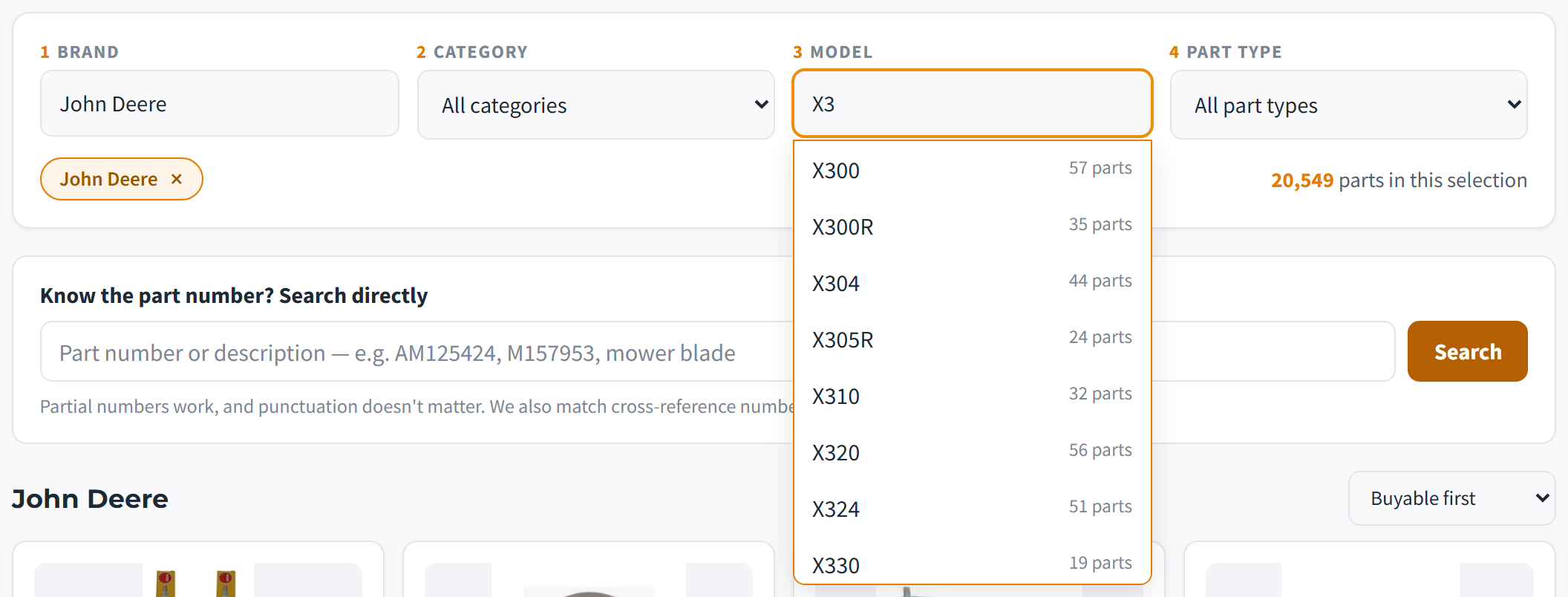
For part types that come in sizes (belts, filters, bearings) an extra Size box appears so you can refine by dimension.
2. Search by part number or name
Use the search box on the Browse page when you can read a number off the old part, or when you only know what the thing is called.
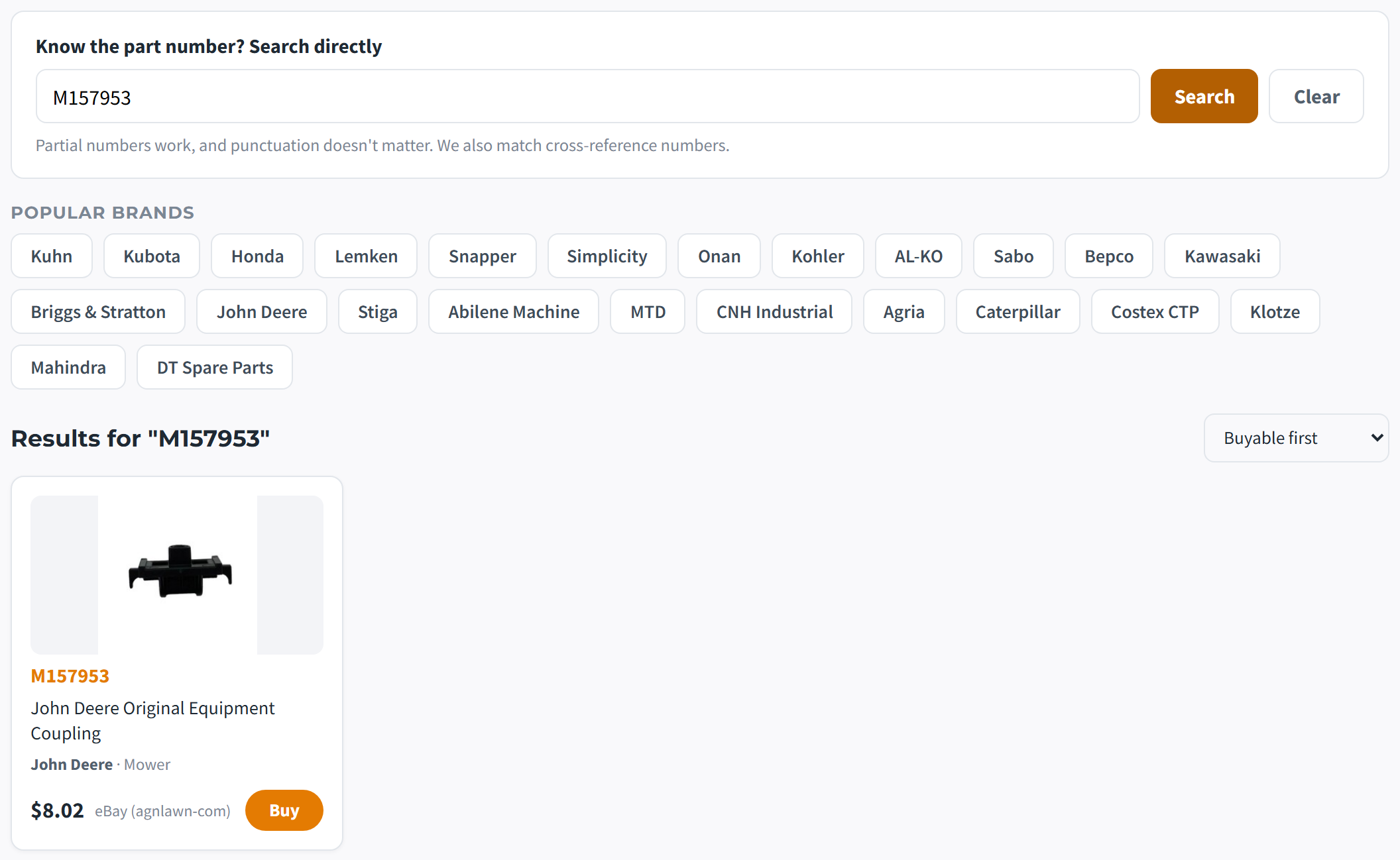
- Punctuation doesn't matter.
AM-125424,am125424andAM 125424all find the same part. - Partial numbers work. Worn stamping? Type what you can read.
M1579lists every part number containing it. - Cross-references count. Search the OEM number and we'll surface aftermarket equivalents we hold under a different number, and vice versa.
- Names work too.
mower bladeorfuel filtersearches part names across the catalog.
filter with Kubota selected means
Kubota filters, not every filter we have.3. Reading a result card
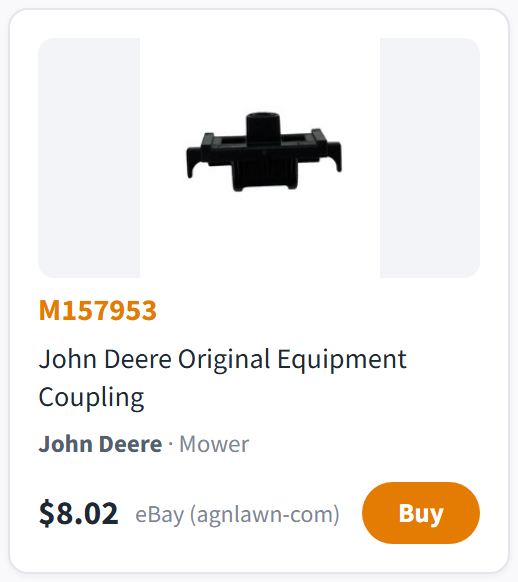
- The orange number is the part number, the thing to match against your old part or your manual.
- Buy takes you to the seller's live listing (usually eBay) to complete the purchase there. Prices are captured periodically, not live. The exact capture date is printed under the results. Always confirm on the seller's page.
- “Catalog listing” instead of a Buy button means we know the part (its number, name, and often what it fits) but don't currently track a seller for it. The reference data is still gold for ordering elsewhere.
Sort with the dropdown above the grid: Buyable first (default), Price: low to high, or Name A–Z.
4. When we widen your search
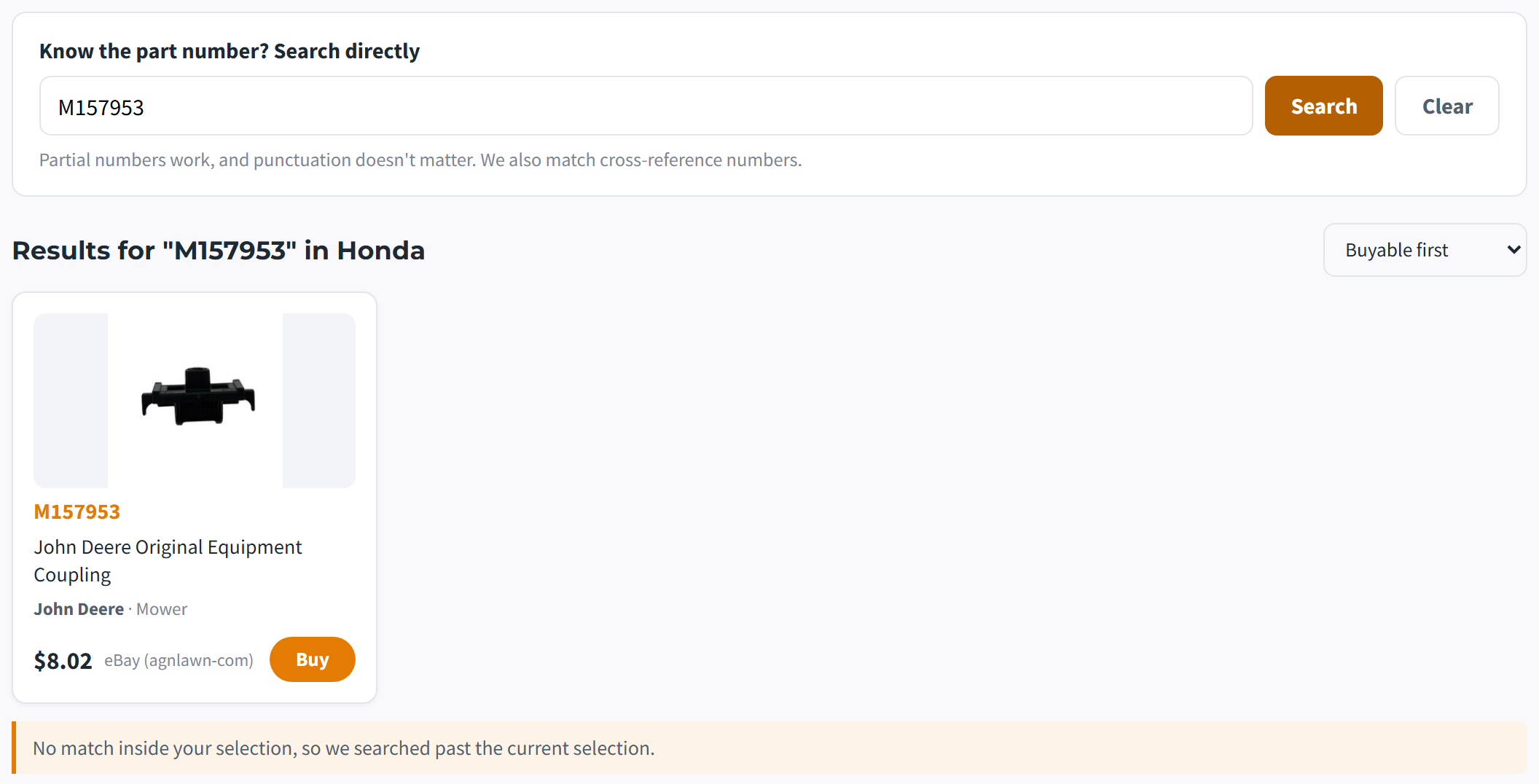
Our machine-compatibility data is growing daily but not complete. If you search a number inside a selection and nothing matches, we don't show you an empty page. We automatically widen the search one step at a time (model, then category, then brand) and tell you we did:
5. Finding a part from a photo
On Find a Part, add up to five photos and hit Read photo. We read stamped or printed numbers off the part and pre-fill the form. You correct anything we misread, then search.
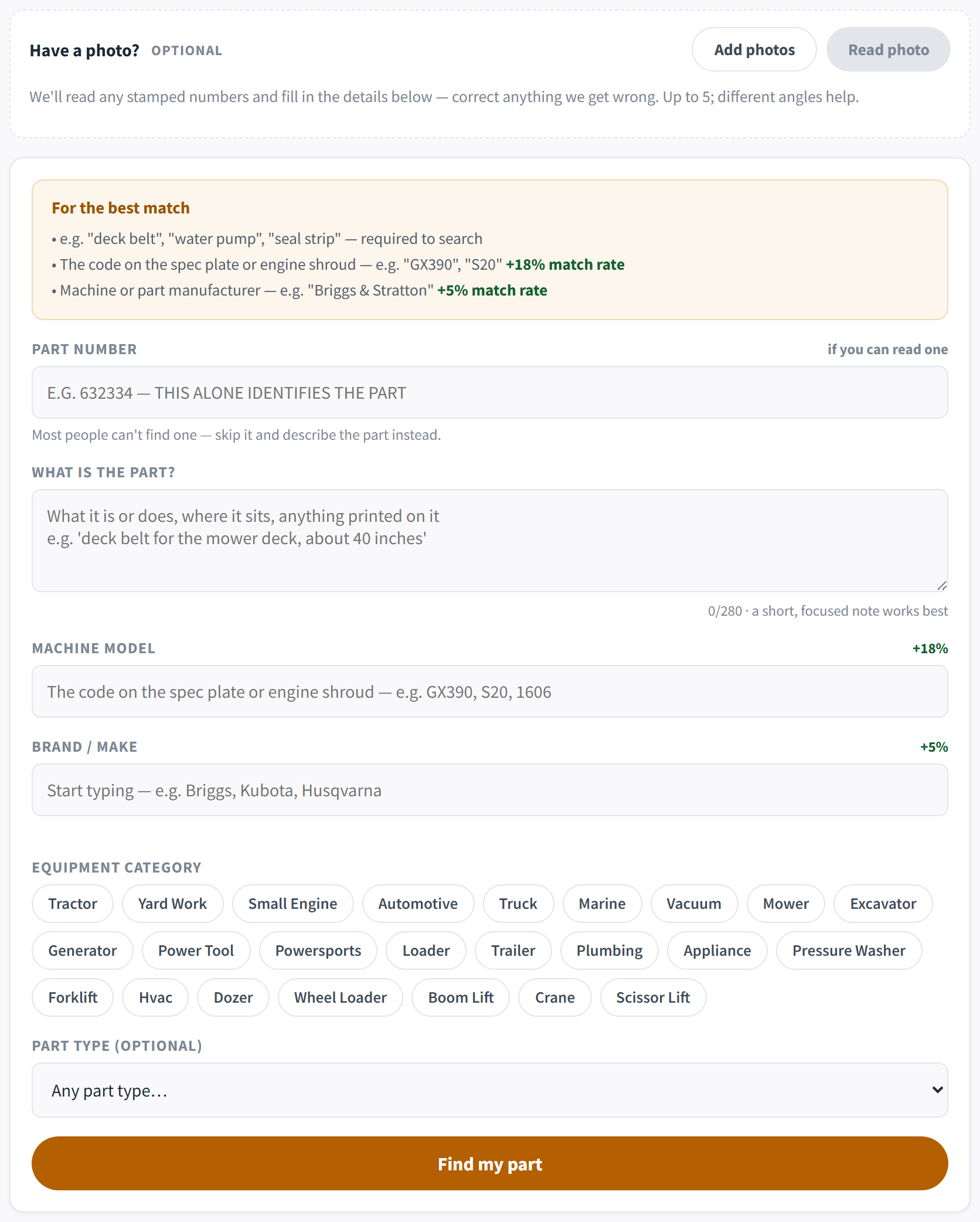
What makes a photo readable:
- Get the stamped or printed number in frame and in focus. That beats ten glamour shots of the housing.
- Different angles help: one of the markings, one of the whole part, one of the mounting face.
- Wipe the grime off the numbers first. Thirty seconds with a rag doubles the read rate.
6. Tips that save time
- Start with the number if you have one. A part number is unambiguous; a description never is.
- Model designations hide on stickers: under the seat on mowers, on the frame rail of trailers, on the fan housing of generators, inside the air-filter cover on small engines.
- Brands marked “listed” in the brand picker are ones we track but don't yet stock parts for. Picking one shows you that honestly instead of an empty grid with no explanation.
- Cross-check with the size filter. Two belts can share a name and differ an inch. If the part type has a size box, use it.
- No luck? Every miss is recorded (just the search, nothing personal) and genuinely drives what we add next. Or just tell us directly. Early days, and we read everything.